IP cameras help you see things from far away. They are easy to set up. Let’s learn how to do it.
What is an IP Camera?
An IP camera is like a digital eye. It sends video over the internet. You can watch the video on your phone or computer.
Why Use an IP Camera?
- Keep your home safe.
- Watch your pets when you are not home.
- Check on your baby in another room.
What You Need to Get Started
Before you start, gather these things:
- IP camera
- Wi-Fi network
- Smartphone or computer
- Camera app or software
Step 1: Connect the Camera
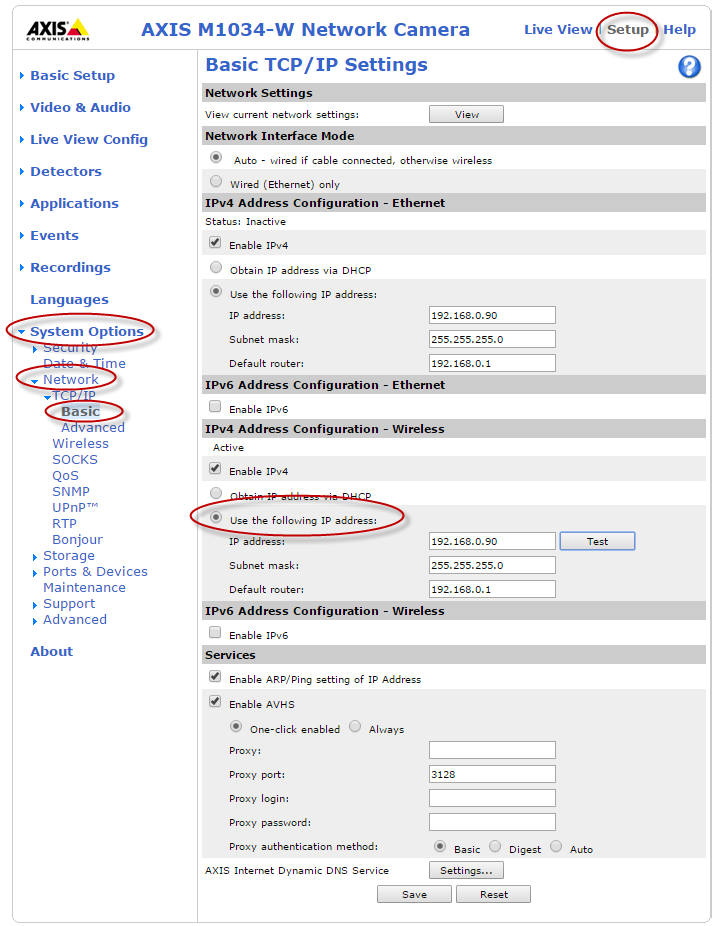
First, plug the camera into power. Use the power adapter that came with the camera. Then, connect the camera to your router. You can use a cable or Wi-Fi.
Step 2: Install the App
Next, you need to install an app. This app helps you see the camera’s video. Look in the camera box for a paper. It will tell you which app to download.
Download the app on your phone or computer. Open the app and make an account. Use your email and a password.
Credit: www.ipcent.com
Step 3: Add the Camera to the App
Open the app. Look for a button that says “Add Camera”. Click it. The app will ask for the camera’s ID. Find the ID on the camera or in the box.
Enter the ID in the app. Then, the app will connect to the camera. Now you can see what the camera sees.
Step 4: Set Up Wi-Fi
The camera needs to know your Wi-Fi. Go to the app’s settings. Look for “Wi-Fi settings”.
Enter your Wi-Fi name and password. The camera will connect to your Wi-Fi. Now you can move the camera anywhere in your house.
Step 5: Adjust Camera Settings
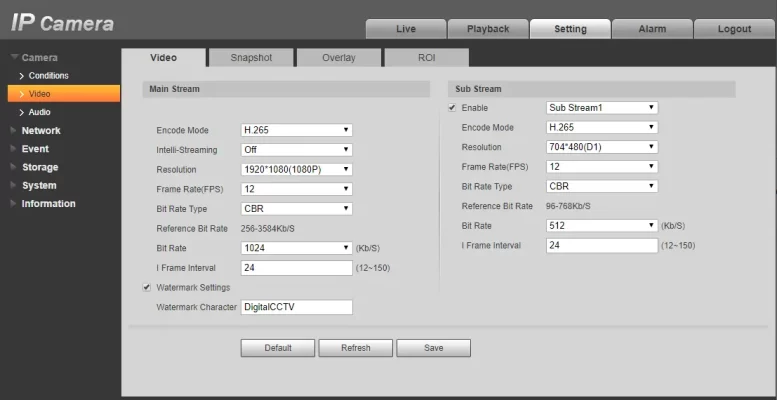
You can change the camera settings to see better. Go to the app settings. You can change:
- Video quality: High or low
- Sound: On or off
- Notifications: Get alerts when the camera sees something
Step 6: Place the Camera
Think about where you want the camera. A corner is a good spot. Make sure it can see the whole room.
Use a shelf or mount it on a wall. Check the video to make sure it looks good.
Credit: myeasytek.com
Step 7: Test the Camera
Walk in front of the camera. Check the app to see if you appear. Check if the sound works too.
If something is wrong, check the settings. Make sure everything is connected right.
Common Problems and Solutions
| Problem | Solution |
|---|---|
| Camera not connecting | Check Wi-Fi settings and cables |
| Video is blurry | Adjust video quality in settings |
| No sound | Turn on sound in app settings |
Tips for Best Performance
- Keep the camera clean. Dust can block the view.
- Check the app for updates. New updates can fix problems.
- Use a strong Wi-Fi signal. It helps the video stay clear.
Frequently Asked Questions
What Is The First Step In Ip Camera Configuration?
Start with connecting the camera to your network using an Ethernet cable.
How Do I Access The Ip Camera Settings?
Use a web browser and enter the camera’s IP address to access settings.
Can I Configure An Ip Camera Wirelessly?
Yes, once initially connected via Ethernet, you can switch to Wi-Fi settings.
Why Is My Ip Camera Not Connecting To Wi-fi?
Check Wi-Fi credentials, signal strength, and ensure the camera supports Wi-Fi.
Conclusion
Now you know how to set up an IP camera. It helps you keep an eye on things. Always feel safe and secure. Happy watching!